 Social Media Engine Help
Reconnect an expired or refused platform login so its channels can publish again. Use the login status to find which connection needs attention.
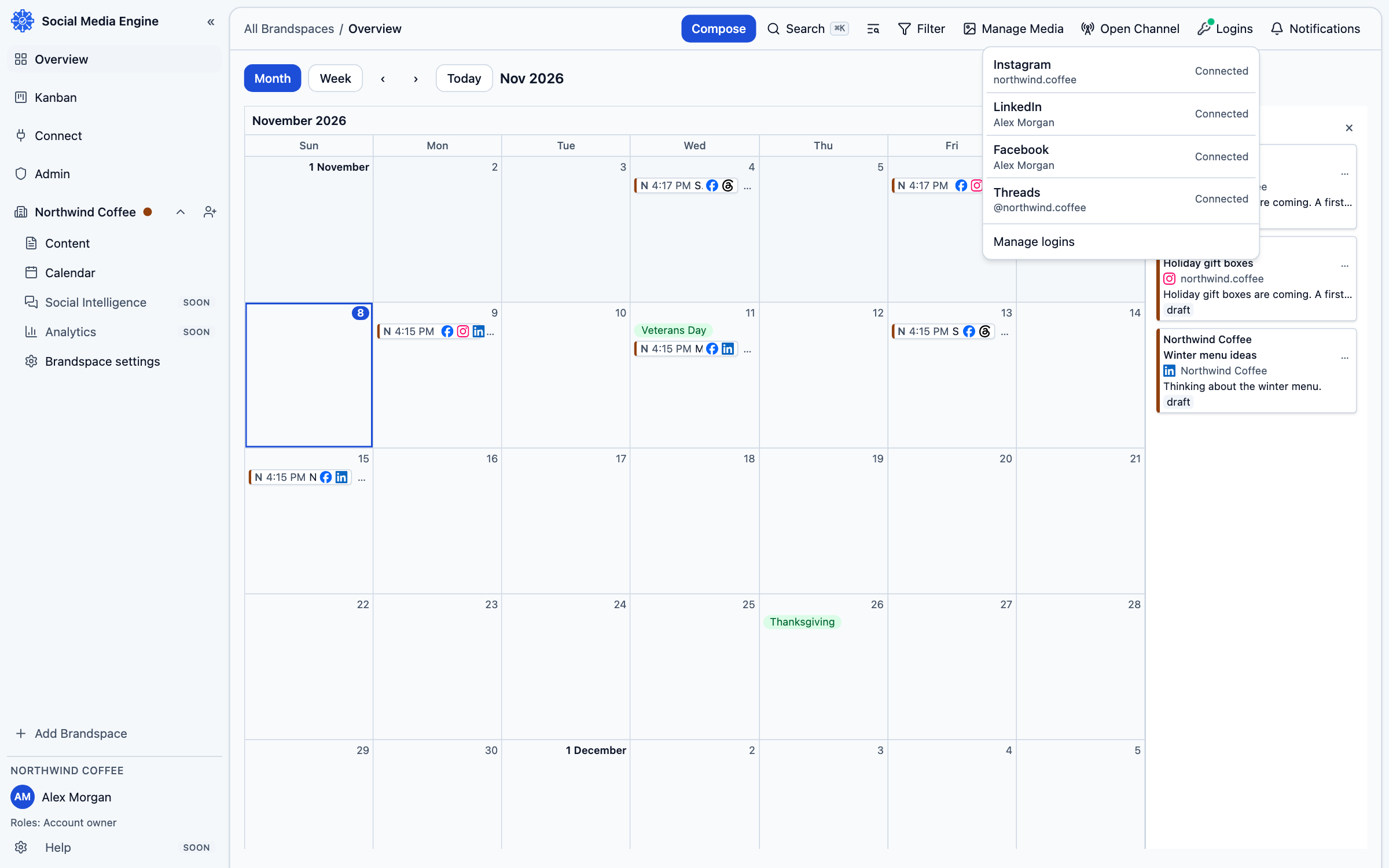
Read the login status
The Logins button shows a dot for the most urgent login state. Green means all are fine, amber means one is expiring and red means a login expired or was refused. On Connect → Logins, each login card says Connected, Expiring, Expired: reconnect needed or Refused by the platform: reconnect needed. A channel tied to a login that no longer works waits until access is restored.
- Open Logins in the top rail.
- Choose Manage logins to open the login cards.
- Find the card with a reconnect message and choose Reconnect.
- Sign in on the platform’s own page and grant access again.
- Return to SME and check that the login says Connected.
If reconnect does not finish
A cancelled permission screen leaves the connection unchanged. An expired or already used connect link needs a new attempt. If the platform refuses access again, confirm you signed into the correct profile and that the profile still manages the destination. Then check the channel’s status in Why a post failed.