 Social Media Engine Help
Connect your platform sign-in so SME can show the destinations you manage. Connect a login before selecting its Pages or profiles as channels.
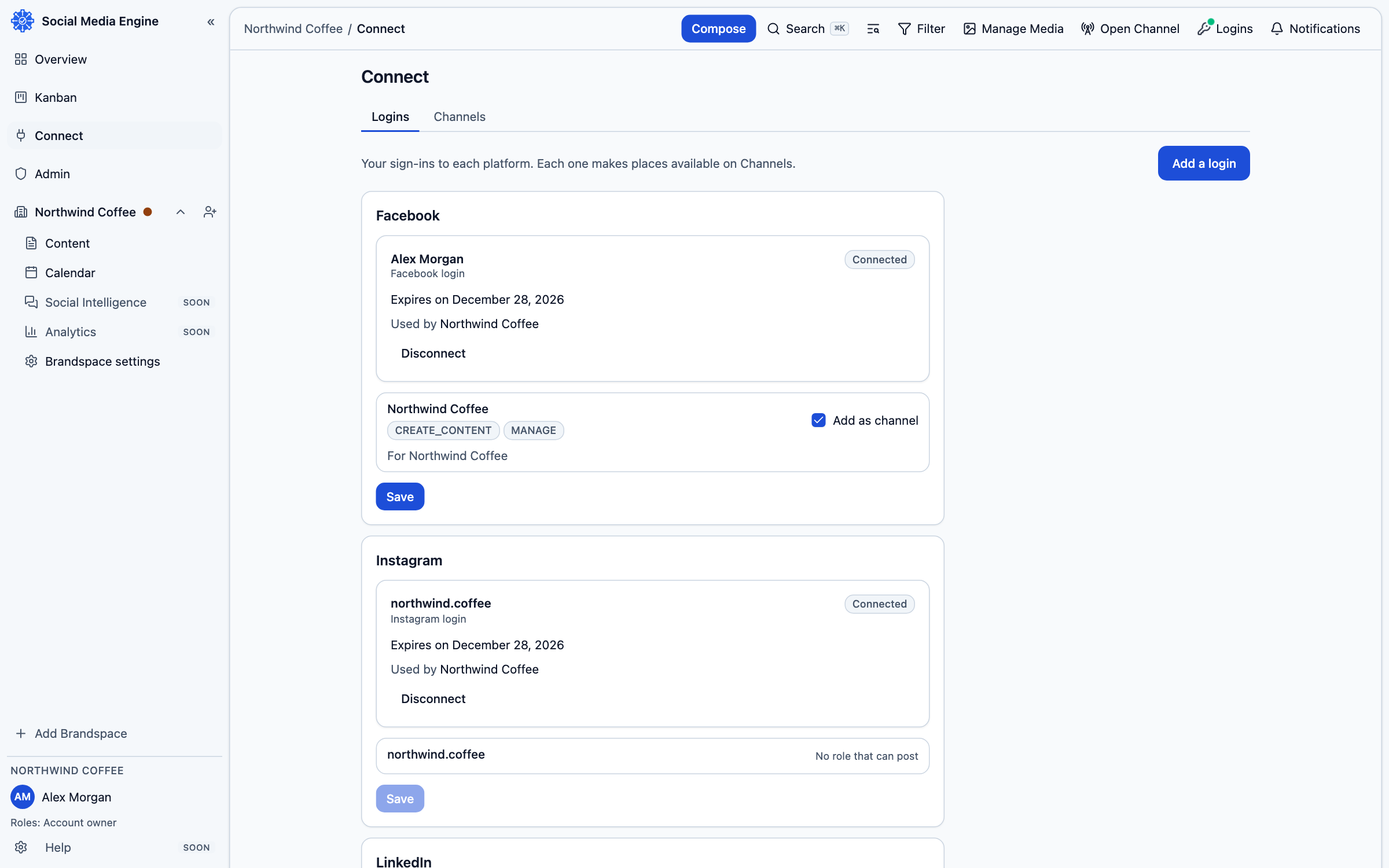
Connect your sign-in
SME uses your login to request access to the places you manage. You sign in on the platform’s own page and approve its request. SME does not ask you to type your platform password into its own form. Connecting a login does not automatically add every available Page or profile as a channel; choose destinations in Channels separately.
- Open Connect from the sidebar.
- Select Logins.
- Choose Add a login.
- Select a platform whose connection is available.
- Sign in on the platform page and allow the access requested.
- Return to SME and confirm the login appears as Connected.
Check the connection
The login card shows the platform identity and its state. A login can show Expiring, Expired: reconnect needed or Refused by the platform: reconnect needed. A card can also show which Brandspaces use its channels. The Logins button on the top rail gives you a quick view of login states from other pages.
- Open Logins in the top rail to see the overall state.
- Choose Manage logins to return to Connect.
- If a card needs attention, choose Reconnect and finish the platform sign-in again.
- Once connected, go to Add a channel to select a destination.